Thursday, October 1, 2009

Get Free Website Hosting


Interests
Webhost
Space
Forced Ads
Your Ads
Upload
Scripting
Your URL
Rating

Personal, Business
000FreeWeb
150 MB
No
Allowed
FTP, Browser
CGI, PHP, SSI, FrontPage Extensions, Perl
Domain, Subdomain
68
Review
Personal, Business
000Page
5,000 MB
No
Allowed
FTP, Browser
PHP
Domain, Subdomain
58
Review
Personal, Business
000Space
5,500 MB
No
Allowed
FTP, Browser
PHP
Domain, Subdomain
68
Review
Personal, Business
001Webs
400 MB
No
Allowed
FTP, Browser
PHP
Domain, Subdomain
98
Review
Personal, Business
007Gb
700 MB
Banner
Allowed
FTP, Browser
PHP
Domain, Subdomain
86
Review
Personal, Business
007Sites
700 MB
Banner-Top
Allowed
FTP, Browser
PHP, SSI
Domain, Subdomain
85
Review
Personal, Business
007Webs
1,000 MB
Banner-Top
Allowed
FTP, Browser
PHP, SSI
Domain, Subdomain
87
Review
Personal, Business
00FreeWeb
100 MB
Banner-Top or Popup
Allowed
FTP, Browser
-
Domain, Subdomain
30
Review
Personal, Business
00space
50 MB
Banner-Top
Allowed
Browser, SiteCopy
ISML
Subdomain
14
Review
Personal, Business
0adz
5,500 MB
No
Allowed
FTP, Browser
PHP
Domain, Subdomain
68
Review
Personal, Business
0Down
5,500 MB
No
Allowed
FTP, Browser
PHP
Domain, Subdomain
68
Review
Personal, Business
0Fees
300 MB
No
Allowed
FTP, Browser
PHP
Domain, Subdomain
68
Review
Personal, Business
0me
50 MB
Banner-Top
Allowed
Browser, SiteCopy
ISML
Subdomain
14
Review
Personal, Business
100Webspace
100 MB
Banner-Top + TextLinks
Allowed
FTP, Browser
CGI, PHP, SSI, FrontPage Extensions, Perl
Domain, Subdomain
96
Review
Personal, Business
10Fast
1,000 MB
Banner-Top
Allowed
FTP, Browser
PHP, SSI
Domain, Subdomain
87
Review
Personal, Business
110mb
110 MB
No
Allowed
Browser
PHP, SSI
Domain, Subdomain
81
Review
Personal, Business
123BeMyHost
5,500 MB
No
Allowed
FTP, Browser
PHP
Domain, Subdomain
68
Review
Personal, Business
125mb
150 MB
No
Allowed
FTP, Browser
CGI, PHP, SSI, FrontPage Extensions, Perl
Domain, Subdomain
68
Review
Personal, Business
1AspHost
100 MB
Banner + TextLinks at Top
Allowed
Browser
ASP, SSI
/you
59
Review
Personal, Business
1Colony
50 MB
Banner-Top
Allowed
Browser, SiteCopy
ISML
Subdomain
14
Review


Interests
Webhost
Space
Forced Ads
Your Ads
Upload
Scripting
Your URL
Rating

Personal, Business
1Free
256 MB
No
Allowed
FTP, Browser
PHP, SSI
Domain, Subdomain
69
Review
Personal, Business
1Hwy
50 MB
Banner-Top
Allowed
Browser, SiteCopy
ISML
Subdomain
14
Review
Personal, Business
20MegsFree
50 MB
Banner-Top
Allowed
Browser, SiteCopy
ISML
Subdomain
14
Review
Personal, Business
250Free
(Note: Bandwidth limit 250 MB/month)
250 MB
Banners Top+Bottom + Popups
Allowed
FTP, Browser, SiteCopy
-
Subdomain
41
Review
Personal, Business
2itb
50 MB
Banner-Top
Allowed
Browser, SiteCopy
ISML
Subdomain
14
Review
Personal, Business
2trom
50 MB
Banner-Top
Allowed
Browser, SiteCopy
ISML
Subdomain
14
Review
Personal, Business
3dup
50 MB
Banner-Top
Allowed
Browser, SiteCopy
ISML
Subdomain
14
Review
Personal, Business
4mg
50 MB
Banner-Top
Allowed
Browser, SiteCopy
ISML
Subdomain
14
Review
Personal, Business
4Page
250 MB
Banner
Allowed
FTP, Browser
PHP
Domain, Subdomain
58
Review
Personal, Business
50Megs
(Note: Excessive adverts)
50 MB
Banners-Top + Bottom + Right Side + Popup
Allowed
Browser, SiteCopy
-
Subdomain
31
Review
Personal, Business
50Webs
60 MB
No
Allowed
FTP, Browser
-
Domain, Subdomain
88
Review
Personal, Business
55Fast
1,000 MB
Banner
Allowed
FTP, Browser
PHP
Domain, Subdomain
87
Review
Personal, Business
5GigHost
5,000 MB
Banner
Allowed
FTP, Browser
PHP
Domain, Subdomain
84
Review
Personal, Business
5nxs
500 MB
Banner
Allowed
FTP, Browser
PHP
Domain, Subdomain
87
Review
Personal, Business
5Webs
1,000 MB
Banner-Top
Allowed
FTP, Browser
PHP, SSI
Domain, Subdomain
87
Review
Personal, Business
777Host
777 MB
No
Allowed
FTP, Browser
PHP
Domain, Subdomain
69
Review
Personal, Business
7p
50 MB
Banner-Top
Allowed
Browser, SiteCopy
ISML
Subdomain
20
Review
Personal, Business
8k
50 MB
Banner-Top
Allowed
Browser, SiteCopy
ISML
Subdomain
14
Review
Personal, Business
8m
50 MB
Banner-Top
Allowed
Browser, SiteCopy
ISML
Subdomain
14
Review
Personal, Business
977mb
977 MB
Banner
Allowed
FTP, Browser
PHP
Domain, Subdomain
82
Review


Interests
Webhost
Space
Forced Ads
Your Ads
Upload
Scripting
Your URL
Rating

Personal, Business
9f
50 MB
Banner-Top
Allowed
Browser, SiteCopy
ISML
Subdomain
20
Review
Personal, Business
ActorSite
50 MB
Banner-Top
Allowed
Browser, SiteCopy
ISML
Subdomain
14
Review
Personal, Business
AfricanSisters
50 MB
Banner-Top
Allowed
Browser, SiteCopy
ISML
Subdomain
14
Review
Personal, Business
AgilityHoster
200 MB
No
Allowed
FTP, Browser
CGI, PHP, SSI, FrontPage Extensions, Perl
Domain, Subdomain
110
Review
Personal, Business
AngelFire
20 MB
Banner-Top + Bottom
Allowed
FTP, Browser, SiteCopy
FrontPage Extensions
/dir/you
56
Review
Personal, Business
ATBHost
1,000 MB - 10,000 MB
No
Allowed
FTP, Browser
CGI, PHP, FrontPage Extensions, Perl
Domain, Subdomain
117
Review
Personal, Business
AtSpace
50 MB
No
Allowed
FTP, Browser
-
Domain, Subdomain
83
Review
Personal, Business
AwardSpace
200 MB
No
Allowed
FTP, Browser
CGI, PHP, SSI, FrontPage Extensions, Perl
Domain, Subdomain
112
Review
Personal, Business
Bappy
50 MB
Banner-Top
Allowed
Browser, SiteCopy
ISML
Subdomain
14
Review
Personal, Business
BatCave
150 MB
No
Allowed
FTP, Browser
CGI, PHP, SSI, FrontPage Extensions, Perl
Domain, Subdomain
68
Review
Personal, Business
BizHosting
50 MB
Banner-Top
Allowed
Browser, SiteCopy
ISML
Subdomain
20
Review
Personal, Business
BlackAppleHost
5,000 MB
TextLink at Bottom
Allowed
FTP, Browser
PHP
Domain, Subdomain
88
Review
Personal, Business
BlockStar
50 MB
Banner-Top
Allowed
Browser
-
/you
47
Review
Personal, Business
BraveNet
50 MB
Banner-Top + Popup
Allowed
Browser
SSI
Domain, Subdomain
57
Review
Language: Russian
Bresttelecom
3 MB
Banner
Allowed
FTP
CGI, PHP, SSI, Perl
/you
56
Review
Language: Japanese
Buttobi
(Note: Japan only)
Unlimited
Banner-Top + Bottom
No
FTP, Browser, Telnet
CGI, PHP, Perl
/dir/you
33
Review
Personal, Business
ByetHost
5,500 MB
No
Allowed
FTP, Browser
PHP
Domain, Subdomain
108
Review
Personal, Business
Bz.tc
50 MB
Banner-Top
Allowed
Browser, SiteCopy
ISML
Subdomain
14
Review
Personal, Business
CanadianWebs
50 MB
Banner-Top
Allowed
Browser, SiteCopy
ISML
Subdomain
14
Review
Personal, Business
Community Architect
50 MB
Banner-Top
Allowed
Browser, SiteCopy
ISML
Domain
56
Review


Source: http://searchenginemarketingtricks.blogspot.com/2009/10/get-free-web-hosting.html

Tuesday, September 29, 2009

GET THOUSND OF FREE .GOV AND .EDU LINKS

I will tell you how you can get a Free .Gov and .Edu links.

For .Edu links.

Just copy and paste following into Google.

site:.edu inurl:blog “comment” -”you must be logged in” -”posting closed” -”comment closed” “your keywords”

and For .Gov links..

site:.gov inurl:blog “comment” -”you must be logged in” -”posting closed” -”comment closed” “your keywords”


source: http://searchenginemarketingtricks.blogspot.com/2009/09/get-thousnd-of-free-gov-and-edu-links.html

Wednesday, September 16, 2009

How to Disable/Enable the Windows XP Welcome Screen?

Windows XP gives the user a couple ways to log into thecomputer. You can use the traditional or classic method of typing in the username and password to login or you can use what's called the Welcome Screen to login.

What if you want to change the way your computer logs in, can you disable or enable this Welcome Screen?

The Windows XP Welcome Screen is tied to another feature called "Fast User Switching". This feature lets a user leave all his programs running if another user needs to use the computer. The first user can Log Off the session and Switch User back to the Welcome Screen so that another person can use the computer. When the second person is done, the user can switch back to his profile with all the programs still running where they left off. In order to use this feature, you have to use the Welcome Screen. However, if you dont need or want this feature, follow the instructions below to remove the Welcome Screen.

Remove the Welcome Screen

If you dont want to use "Fast User Switching", you may want to disable the Welcome Screen. You must be logged in as an Administrator to do this. Note:To do this follow the directions below:

1) Click on Start
2) Click on Control Panel
3) Double-click on User Accounts
4) Click on "Change the way users log on or off"
5) Uncheck "Use the Welcome Screen" (note: this will also disable "Fast User Switching")
6) Click on Apply Options
7) Close the User Accounts window and the Control Panel
8) The next time you reboot your computer, the classic login prompt will be used
What if I dont want the Welcome Screen OR the classic prompt? Can I disable both?

To Login automatically to a user account, follow the instructions below:

1) Click on Run

2) Type in the following command and click OK


control userpasswords2

3) Highlight the user you want to log into automatically, then uncheck the box for
"Users must enter a username and password to use this computer"

4) Click on Apply and you'll be asked to verify the username and password to log in automatically 

5) Click OK and the next time you restart your computer, you'll automatically be logged in without having the classic prompt or Welcome Screen.


Is there a utility I can use to accomplish this?

You can download a utility for Windows XP called TweakUI that will allow you to change the way you log into Windows XP, along with allowing you to change alot of other features.

You can download TweakUI for Windows XP from the Microsoft Powertoys web page at

http://www.microsoft.com/windowsxp/downloads/powertoys/xppowertoys.mspx


Another Welcome Screen Issue

If you have recently installed a Netgear WG111 USB wireless network adapter, you might not be able to enable the Welcome Screen or Fast User Switching, click here to solve this problem

Sunday, August 16, 2009

How To Trace A Mobile Phone Number In India?

Tracing a mobile phone number to its location in India is difficult. There are quite a number of hurdles and there aren’t really functional services in India that actually let you pin point and trace a mobile phone number in India.

Reverse lookup services weren’t very accurate when I tried to trace the location of a mobile phone number in India, but they could just help you in finding at least the state where these mobile phones are operating from.

image

You can use this page on Bharatiyamobile, or this international reverse lookup service from TP2 Location orthis page by Hacktrix that could help you trace a mobile phone number in India. Let me know in the comments if you have had any success with any other service in tracing a mobile phone number in India.

source: http://www.killertechtips.com/

Shutdown Windows Faster than Before

If you experiencing the Windows operating system (including Windows 2000, Windows XP, Windows 2003, Windows Vista and Windows Longhorn Server) shutdown slowly, and seems like always waiting for a long time before shutting down the computer. The behavior is due to Windows system waits for services to stop after notifying the service that the system is shutting down, when the user issues command to shut down, turn off or restart the computer. Other than that, Windows also wait for the timeout to kill open applications. You can make the Windows 2000, Windows XP, Windows 2003 and Windows Vista shutdown faster by changing the following settings.

Note: For modification involves registry, you can modify the registry value by using Registry Editor, which can be started by typing “regedit” in Start -> Run box, or by pressing Windows + R buttons.

(I) Reduce the wait time for services to be killed

As mentioned above, Windows will wait for the services to shutdown and kill themselves after notifying the running services to shut down. If not, Windows will wait for the timeout and start killing the still running services. You can reduce the wait time for Windows to kill the persistent services.

  1. Navigate to the following registry branch: HKEY_LOCAL_MACHINE \ System \ CurrentControlSet \ Control
  2. On the right pane, double click on ‘WaitToKillServiceTimeout’ or right click on it and choose modify. Change the default value of WaitToKillServiceTimeout of 20000 to lesser value, such as 5000 or even 1000, depending on your preference.
  3. When the value of WaitToKillServiceTimeout expires, the system notifies the user that the service has not stopped, and prompt the user with option to force the service task to stop or continue to wait.

(II) Reduce the wait time for user processes and applications to be killed

As with services, Windows will also wait for a while, depending on WaitToKillAppTimeout setting, before starting to shut down and kill open applications and user processes when the user want to shutdown, restart or log off. The wait time or time out can be reduced to speed up the shutdown process.

  1. Navigate to the following registry branch: HKEY_CURRENT_USER \ Control Panel \ Desktop
  2. On the right pane, double click on WaitToKillAppTimeout (or right click on the registry key and select Modify), and enter a new value which is less than the default value of 20000. The value can be 1000 or 5000 or any other numeric value, depending on your preference. When the WaitToKillAppTimeout registry entry timeout or expires, the End Task dialog box appears, stating that the process did not respond, and allowing user to End the task.
  3. On the right pane also, double click on HungAppTimeout (or right click on the registry key and select Modify) and change the value to less numerical value than 5000 (default value), e.g. 1000. HungAppTimeout specifies how long the system waits for user processes to end after the user clicks the End Task command button in Task Manager or after the user has selected to restart or shutdown the system.
  4. Then navigate to HKEY_USERS\.DEFAULT\Control Panel\Desktop\ registry branch, and do the same as above to change and modify the value of WaitToKillAppTimeout and HungAppTimeout registry keys.

(III) Automatically end, terminate and kill user processes or tasks on shutdown or logoff

Even if you have set the HungAppTimeout registry entry to a very low value, what happen is that when HungAppTimeout time out due to a hung applications or unable to terminate tasks or not responding to the end task request, it will prompt user with a End Task dialog box to ask if user wish to end the process. By changing to the value of registry key AutoEndTasks to 1, we can ask Windows to end all processes that timeout when shut down or log out from Windows automatically, without asking for user input or interaction. Default value of the key is 0, which mean no user processes will end automatically.

AutoEndTasks is located at HKEY_CURRENT_USER\Control Panel\Desktop registry branch.

Source: http://teamtutorials.com

Remove Items from Windows XP Startup

Having too many programs run at startup can slow down the time it takes to log on or restart your computer. It also can be a pain to have 30 different icons in your task bar. This tutorial will show you how to remove the items from Windows XP startup.

Disclaimer: Always try to disable the startup or task bar icons from the menu options on the programs first. After that remove the program from the startup folder on the Start Menu If that doesn’t work, then you can try to remove them using msconfig.

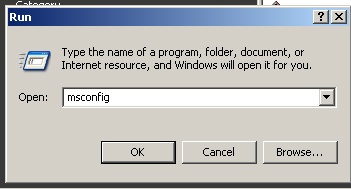
Click on the Start Menu and Select the Run option.
Remove Items from Windows XP Startup

In Run box type msconfig and press enter.
Remove Items from Windows XP Startup

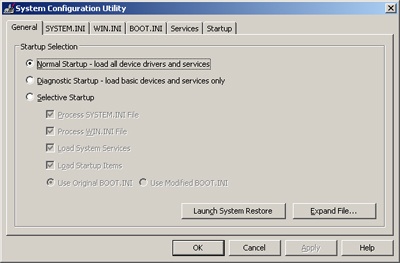
The Windows XP System Configuration Utility windows will open.
Remove Items from Windows XP Startup

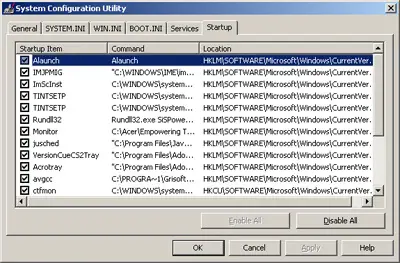
Click on the Startup tab to display the programs that run at startup.
Remove Items from Windows XP Startup

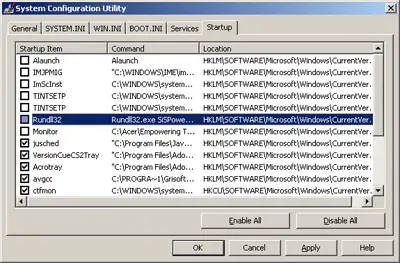
Now all you have to do is uncheck the box next to the program name. If the box is clear, the program will no run at startup. Make sure you know what the program does before you disable it.
Remove Items from Windows XP Startup

When you are finished just hit the Apply button and then OK. The next time you restart your computer the programs will not run.

Popularity: 25% [?]

source: http://teamtutorials.com/windows-tutorials/remove-items-from-windows-xp-startup